GPT Function Node
Overview
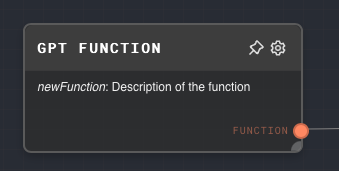
The GPT Function Node defines a JSON-schema-backed tool/function that an LLM can call in its response.
The output of the GPT Function Node can be passed into the Tools port of the LLM Chat Node. To enable this, turn on tool use in the LLM Chat node's Tools section.
If you want to pass multiple functions into an LLM Chat node, collect the functions with an Array Node, then connect that array to the LLM Chat node's Tools port.
A function is defined using JSON Schema, which is a vocabulary that allows you to annotate and validate JSON documents. For more information on JSON Schema, see the official website.
You may use interpolation values in the GPT Function schema the same way you can use them in the Text and Prompt nodes. Wrap your interpolation values in double curly braces, e.g. {{value}}.
- Inputs
- Outputs
- Editor Settings
| Title | Data Type | Description | Default Value | Notes |
|---|---|---|---|---|
| Input N | string | Variable number of inputs for interpolated values such as {{value}} inside the schema definition of the node. | (empty string) |
Outputs
| Title | Data Type | Description | Notes |
|---|---|---|---|
| Function | gpt-function | The function that was defined. This output can be connected to the Tools port of an LLM Chat Node. |
Editor Settings
| Setting | Description | Default Value | Use Input Toggle | Input Data Type |
|---|---|---|---|---|
| Name | The name of the function. This is the name that GPT will use to call the function in its responses. | newFunction | Yes | string |
| Description | A description of the function. This is used for documentation purposes and does not affect the function's behavior. | (empty) | Yes | string |
| Schema | The JSON Schema that defines the function's parameters. | (empty) | Yes | object |
Example 1: Define a function that takes a single string parameter
Create a GPT Function Node.
Set the
Nametogreet.Set the
DescriptiontoA function that greets a user.Set the
Schemato the following:{
"type": "object",
"properties": {
"name": {
"type": "string",
"description": "The name of the user"
}
},
"required": ["name"]
}Create an LLM Chat Node and enable tool use in its Tools section.
Connect the
Functionoutput of the GPT Function Node to theToolsinput of the LLM Chat Node.Set the
Promptof the LLM Chat Node to the following, using a Text Node or Prompt Node:Please call the `greet` function with the name "John Doe".Run the graph. The LLM Chat node should output a tool/function call to
greetwith the parameternameset to"John Doe".
Error Handling
The GPT Function Node will error if the Schema is not a valid JSON string or if it does not represent a valid JSON Schema.
FAQ
Q: Can I define a function that takes multiple parameters?
A: Yes, you can define a function that takes multiple parameters by adding more properties to the Schema. Each property represents a parameter of the function.
Q: Can I define a function that takes an array or an object as a parameter?
A: Yes, you can define a function that takes an array or an object as a parameter by setting the type of the property in the Schema to array or object.
Q: Can I define a function that does not take any parameters?
A: Yes, you can define a function that does not take any parameters by setting the Schema to an empty object ({}).
Q: Can I use the GPT Function Node to define a function that returns a value?
A: No, the GPT Function Node only defines the function's name and parameters. The function's behavior is determined by the rest of the graph.
Q: How can I connect multiple functions to an LLM Chat Node?
A: You can connect multiple functions to an LLM Chat Node by passing all of the functions into an Array Node, and then connecting the Array Node to the LLM Chat Node's Tools input.