Prompt Designer
The Prompt Designer gives you a UI to tweak and test prompts from Chat and LLM Chat nodes.
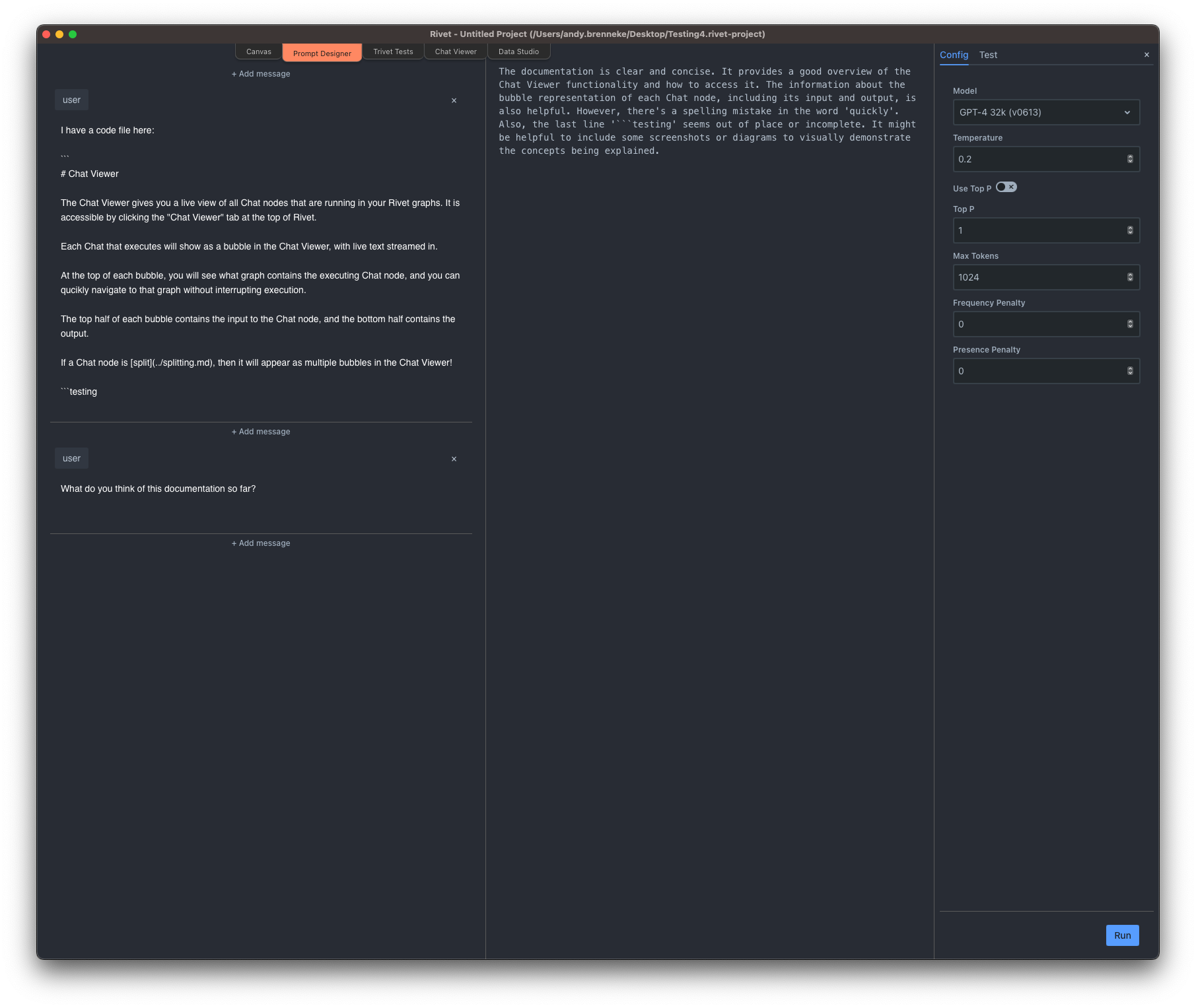
It is opened from a chat node's flask icon. When the Prompt Designer is open, Rivet shows a Prompt Designer tab in the top bar; when it is closed, that tab is hidden.
When you click the flask icon, the node's input messages, output, and compatible generation settings are copied into the Prompt Designer automatically.
Messages
The left side of the Prompt Designer contains the list of messages that will be sent to the model. You can add, remove, and edit messages here.
Response
The middle of the Prompt Designer contains the model response.
Parameters
The right side of the Prompt Designer contains tweakable model parameters, such as temperature and max tokens.
Once you have tweaked your prompt, and set the settings to your desired values, you can click Run at the bottom left to test your prompt.
The Tests view can run prompt test groups against an evaluator graph. Choose an evaluator graph before running tests so Rivet knows how to score each case.