First AI Workflow
When you first open a project in Rivet, you work on a canvas. This is where you can create your first AI workflow.
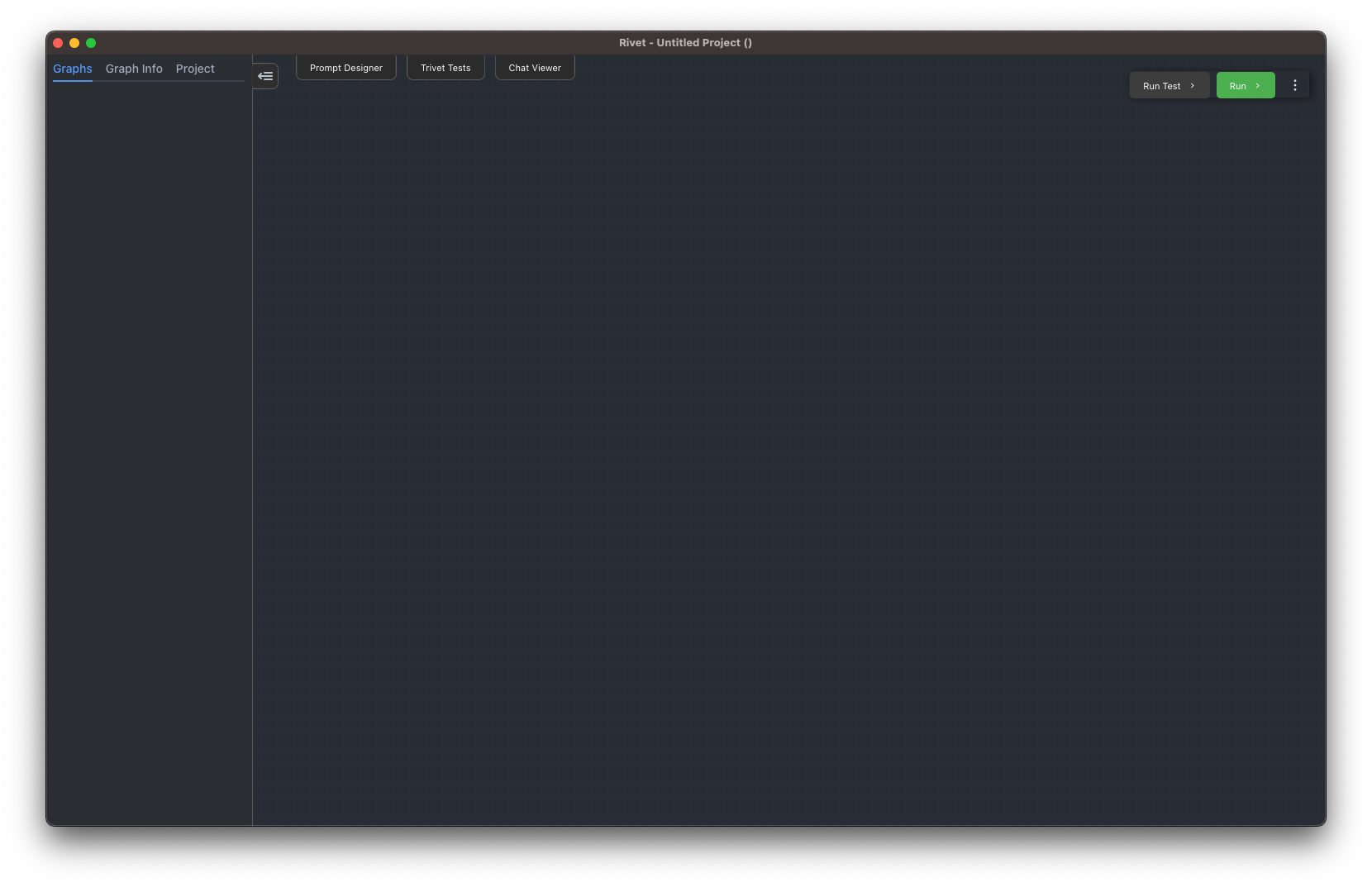
Right click, or press Space, to open the Add menu. Search for LLM Chat and select the LLM Chat Node. This creates a chat node where you clicked.
Add a Text Node to the left of the LLM Chat node. You can find it by searching for Text in the same Add menu.
Drag from the Output port of the Text node to the Prompt port of the LLM Chat node. This connects the text value to the model prompt.
Open the Text node settings and change the text to:
Hello, AI!
Open the LLM Chat node settings and make sure the Model section has a provider and model selected. If you are using OpenAI from app settings, the default OpenAI provider is enough after you add your API key in Settings.
Finally, click Run in the top right of the Canvas workspace. The Text node sends Hello, AI! into the LLM Chat prompt, and the LLM Chat node sends the request to the selected provider.
The response is visible in the LLM Chat node output. You can connect the Response output to another node, parse text responses with JSON/YAML/regex extractors, use structured response formats to output parsed objects directly, or send it to a Graph Output Node if this graph is meant to return a value.
Congratulations. You have created your first Rivet workflow. There is a lot more you can build from here: add structured outputs, run many inputs, use Code nodes for custom logic, or move repeated logic into subgraphs.
Next, you can go through the tutorial to learn more about what nodes are available and how to assemble them into a larger workflow, or you can continue with the user guide to learn more about Rivet's features in depth.