Setup
Settings
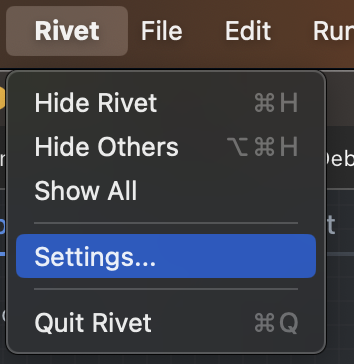
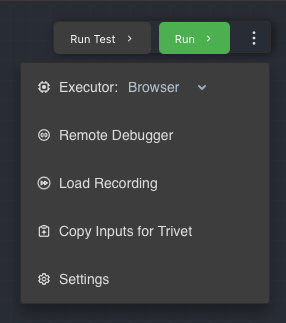
Open Rivet settings from the app menu in the desktop app. In the browser-hosted app, open the top-bar File menu and choose Rivet settings.
OpenAI
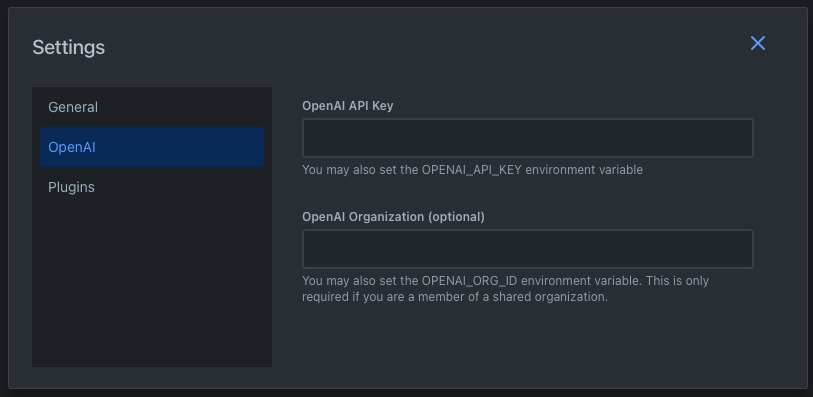
If you are using OpenAI for text generation, add your API key and optionally your organization ID to Rivet. OpenAI is used by the LLM Chat Node, the legacy Chat Node, and the Get Embedding Node.
In the OpenAI page in Settings, you can set your OpenAI key and organization ID. Alternatively, you may set OPENAI_API_KEY and OPENAI_ORG_ID environment variables. If you change environment variables after Rivet starts, restart Rivet so the Node executor and app settings can see the new values.
LLM Providers
For new chat workflows, prefer LLM Chat. It supports OpenAI, Anthropic, Google, and custom OpenAI-compatible providers from one node. Each node can either use a configured provider API key or expose an API Key input port. Custom providers also have their own Provider base URL field, separate from the advanced base URL override for built-in providers.
Plugin Settings
Plugins are installed into the Rivet app, not manually enabled per project. Install and remove app-level plugins from Settings > Plugins. Plugin-specific API keys and other configuration live in Settings > Plugins settings.
Project files still contain a plugins list, but Rivet derives that list from actual plugin nodes in the project's graphs. Adding a plugin makes its nodes available everywhere; adding one of those nodes to a graph makes the current project declare the plugin when saved.