Running Many Items
Let's say you want to summarize a long document. You can divide the document into an array of smaller pieces of text, summarize each piece, and then combine those summaries into a final answer.
Older Rivet docs called this "splitting." In the current app, the same behavior is controlled by each node's run mode:
Run onceMany parallel runsMany sequential runs
The tutorial project still stores this example in the legacy "6. Splitting" folder. Download the documentation-tutorial.rivet-project here and open it in Rivet to follow along.
Chunking
The first step is turning one large document into an array. The Chunk Node takes a string and divides it into chunks of a configured token size.
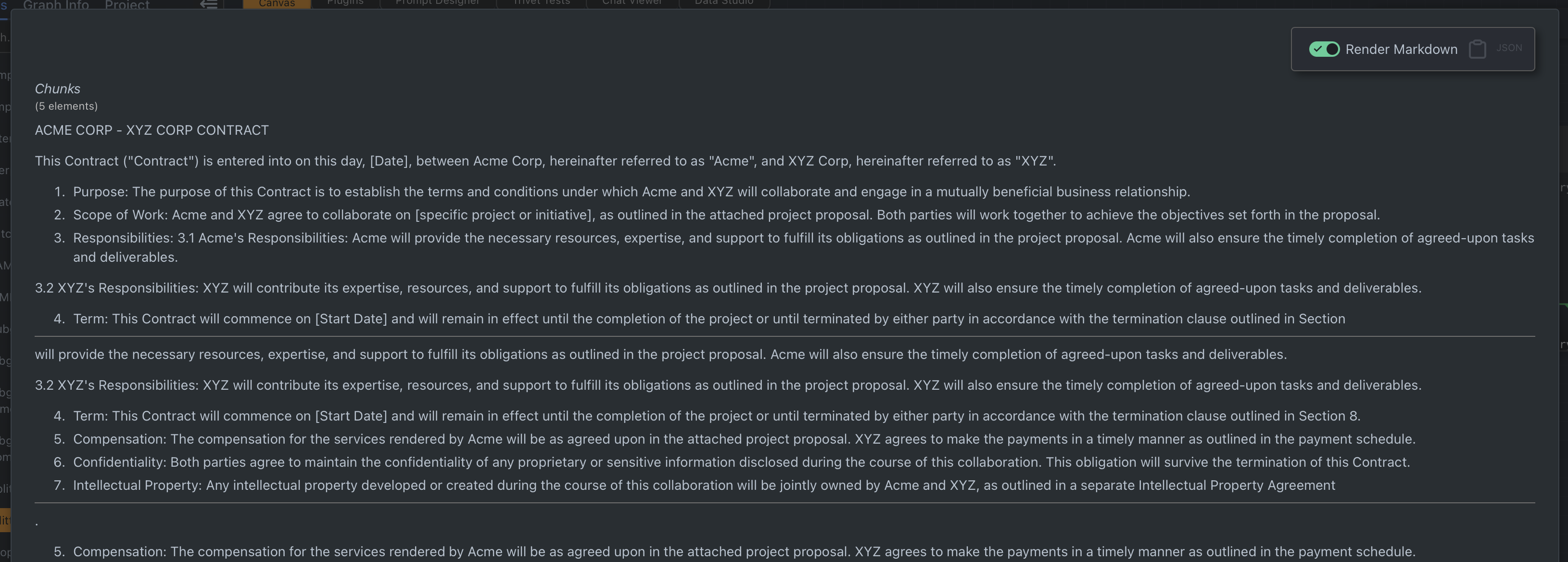
Try running the tutorial example and notice that the Chunk node output has multiple elements. Now increase overlap to 50%. The output likely has more elements because each chunk shares some text with the previous and next chunk. Overlap helps preserve sentences or ideas that might otherwise be cut apart.
In the screenshot below, you can see that "3.2 XYZ's Responsibilities" appears in both chunk 0 and 1, while "5. Compensation" appears in both chunk 1 and 2.
Choose a Run Mode
Select a node and look at the run-mode control in the node settings panel.
Run once runs the node one time. If an input is an array, the node receives the whole array.
Many parallel runs runs the node once per array item and processes the items concurrently. This is best for independent work like summarizing chunks, transforming list items, or calling APIs when order does not matter.
Many sequential runs also runs once per array item, but processes items one at a time. Use it when calls must be ordered, when a service has strict rate limits, or when side effects must not overlap.
The project file still stores this as split-run state (isSplitRun, isSplitSequential, splitRunMax, and splitRunConcurrency), but the UI presents it as run mode.
Run Once
Run the tutorial graph with the Text node set to Run once. The Text node receives the full array of chunks.
This is sometimes useful, especially when you are combining many values into one prompt. String arrays are usually coerced into text by joining the items with newlines.
Many Parallel Runs
Change the Text node run mode to Many parallel runs and run the graph again.
The Text node now runs once per chunk. Its output is an array, where each item is the template result for one chunk.
When multiple inputs are arrays, Rivet lines them up by index. In the tutorial graph, index and data are both arrays, so item 0 of index is processed with item 0 of data, item 1 with item 1, and so on. Inputs that are not arrays stay the same for every run.
Try setting Max runs to 2. Only the first two items are processed.
For parallel mode, Max concurrent runs controls how many item runs may be active at the same time. Lower it when an API or model provider needs gentler traffic.
Many Sequential Runs
Switch the Text node to Many sequential runs.
The result shape is still an array, but each item is processed after the previous item finishes. This mode is slower than parallel mode, but it is easier to reason about when calls depend on order or external systems dislike bursts.
Keep Arrays Aligned
Try to keep array inputs to a many-runs node the same length. If one array is shorter than another, Rivet cycles through the shorter array again. That behavior can be useful in advanced graphs, but it is usually a sign that the inputs should be reshaped first.
Combine the Results
Many-runs nodes produce arrays. After the tutorial graph summarizes each chunk, connect the array of summaries into a node set to Run once to combine them.
By default, a string-array input can be coerced into a string by joining each item with a newline. If you need a different separator or formatting, use the Join Node before the final summarization step.
The basic pattern is:
- Chunk one large input into an array.
- Use
Many parallel runsorMany sequential runsto process each item. - Use
Run onceto combine the array back into a final answer.